mkgallery examples
This document provides examples and instructions on how to use the mkgallery shortcode in your Quarto projects. This shortcode allows for easy embedding of images from a specified directory into a document.
Installing
To use the mkgallery extension in your Quarto project, follow these steps:
- Run the following command in your terminal within the project’s working directory. This will install the extension under the
_extensionssubdirectory:
quarto add t-arae/mkgallery- Once installed, apply the
mkgalleryfilter by adding the following lines to the YAML header of your.qmdfile:
filters:
  - t-arae/mkgallery
Basic usage
To display all images within a directory (e.g., imgs/), you can use the mkgallery shortcode in your Quarto document as follows:
{{< mkgallery imgs >}}This will embed all images found in the imgs/ directory.





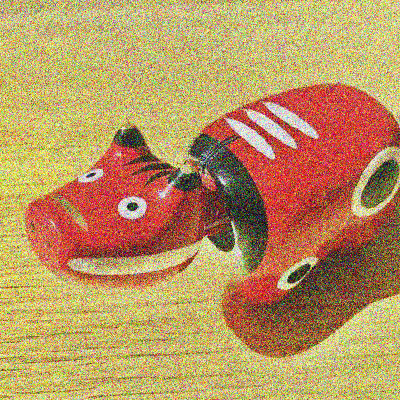

File extension(s)
You can control which file extensions to include by using the ext argument. By default, the extensions png, jpeg, and jpg are supported.
Here are examples of how to specify file extensions:
<!-- For PNG images only -->
{{< mkgallery imgs ext=png >}}

<!-- For JPG and JPEG images -->
{{< mkgallery imgs ext=jpg,jpeg >}}Gallery type
The mkgallery shortcode supports different gallery layout types. By default, the gallery layout is set to scroll, but you can specify other layouts like wrap or list through the second argument.
scroll (default)
In this layout, images are displayed horizontally with a scroll bar if the total width exceeds the container’s width.
{{< mkgallery imgs scroll ext=png >}}wrap
In the wrap layout, images are displayed in a flexible grid where they wrap to the next line when they reach the container’s width.
{{< mkgallery imgs wrap ext=png >}}list
In the list layout, images are displayed vertically in a single column, one image per line.
{{< mkgallery imgs list ext=png >}}Image width
You can customize the width of the images in the gallery using the width argument. This argument accepts any value that can be applied to the CSS width property.
For example, to set the width to 45%:
{{< mkgallery imgs ext=jpg,jpeg width=45% >}}Lightbox
The lightbox allows users to view images in a pop-up overlay by clicking on the thumbnails. mkgallery uses lightbox if it is enabled. If you want to group images into a lightbox gallery, you can use the group argument. If you do not set the group argument, then the group will be set as "all".
For example, to group images into a one gallery with the group name "group1":
{{< mkgallery imgs group=group1 >}}Bootstrap
You can use the pre-defined CSS class and/or Bootstrap classes with mkgallery to further style and organize your image gallery. Here’s an example using Bootstrap utility classes to add padding, background color, and custom text styling around the image gallery:
:::{.column-screen .p-2 .bg-dark .fs-2 .fw-bold}
{{< mkgallery imgs width=300px >}}
:::